
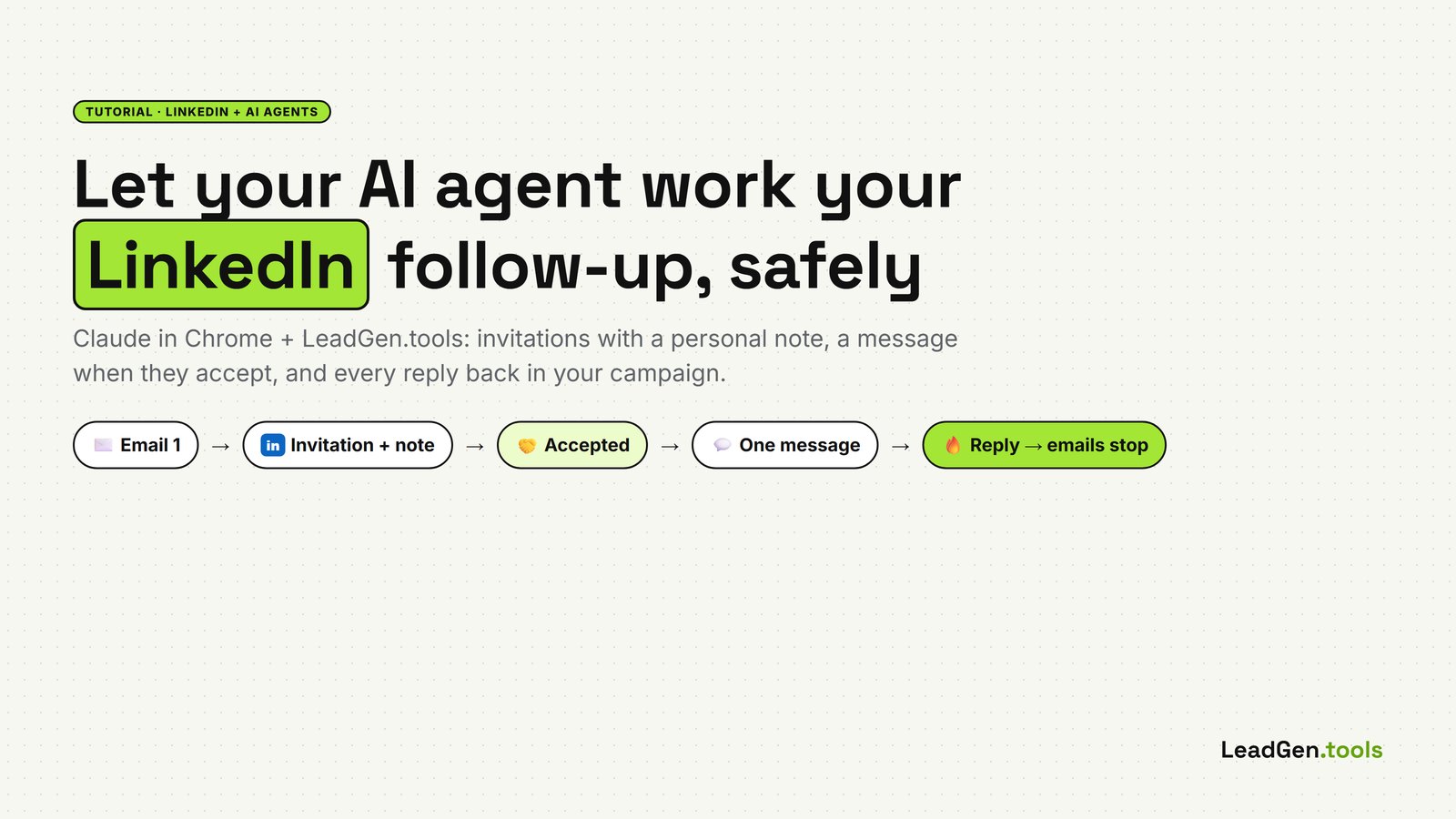
A cold email gets read. A LinkedIn invitation that says “I just sent you an email about…” gets you remembered. Doing both by hand for every prospect is the part nobody has time for. And the tools that automate it usually log into your LinkedIn from their servers and charge you per connected account.
Here is another way: your own AI agent, in your own browser, working from a list that LeadGen.tools prepares for you, with the limits, the order and the stop rules already decided. You install one extension, copy one routine, and your agent does the clicks: invitations with a personal note, one message to the people who accept, and every reply back in your campaign, where it stops the emails.
What you need
- A LeadGen.tools campaign that has already sent first emails (the LinkedIn list only shows people who got your email, which is what the note talks about).
- Google Chrome on your computer, signed in to LinkedIn and to LeadGen.tools.
- A paid Claude plan (Pro, Max, Team or Enterprise) for Claude in Chrome. On Enterprise, an admin has to turn it on.
- About 15 minutes the first time. After that, one click a day, or none with a scheduled task.
The rules are built into the list, not left to the agent
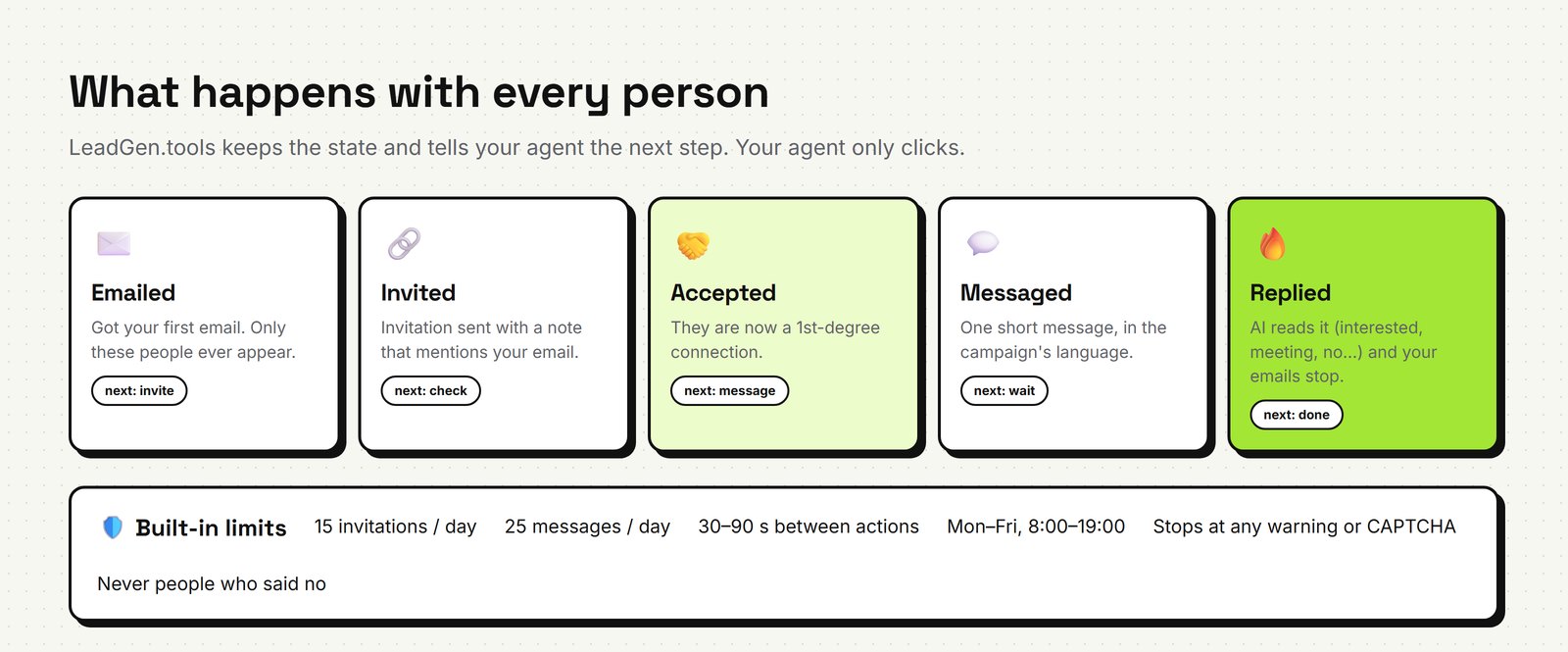
Every prospect in your campaign goes through the same journey: emailed → invited → accepted → messaged → replied. LeadGen.tools tells the agent the next action for each one. The limits come from the page, so a clever prompt can’t talk its way past them:
- 15 invitations and 25 messages a day at most (well under LinkedIn’s own limits), 30–90 seconds between actions, Monday to Friday, business hours.
- Only people who already received your first email. Anyone who opted out, bounced or said no by email never appears.
- Someone who answered your email isn’t messaged on LinkedIn; that conversation continues in your inbox.
- An invitation that isn’t accepted in 21 days stops there. The emails keep going on their own.
- No InMails, no follows, no likes, nothing to anyone outside the list. And the agent stops and tells you on any LinkedIn warning, limit, verification or CAPTCHA.
Step 1: Install Claude in Chrome

- Open the Claude extension on the Chrome Web Store and click Add to Chrome.
- Sign in with your Claude account (a paid plan).
- Pin it: click the puzzle-piece icon in Chrome’s toolbar, then the pin next to Claude.
- Accept the permissions it asks for. It needs them to read pages and click for you.
- Open the side panel by clicking the Claude icon. That’s where you’ll paste the routine.
Anthropic’s own guide, with the safety notes worth reading once: Get started with Claude in Chrome.
Step 2: Open your campaign’s LinkedIn tab
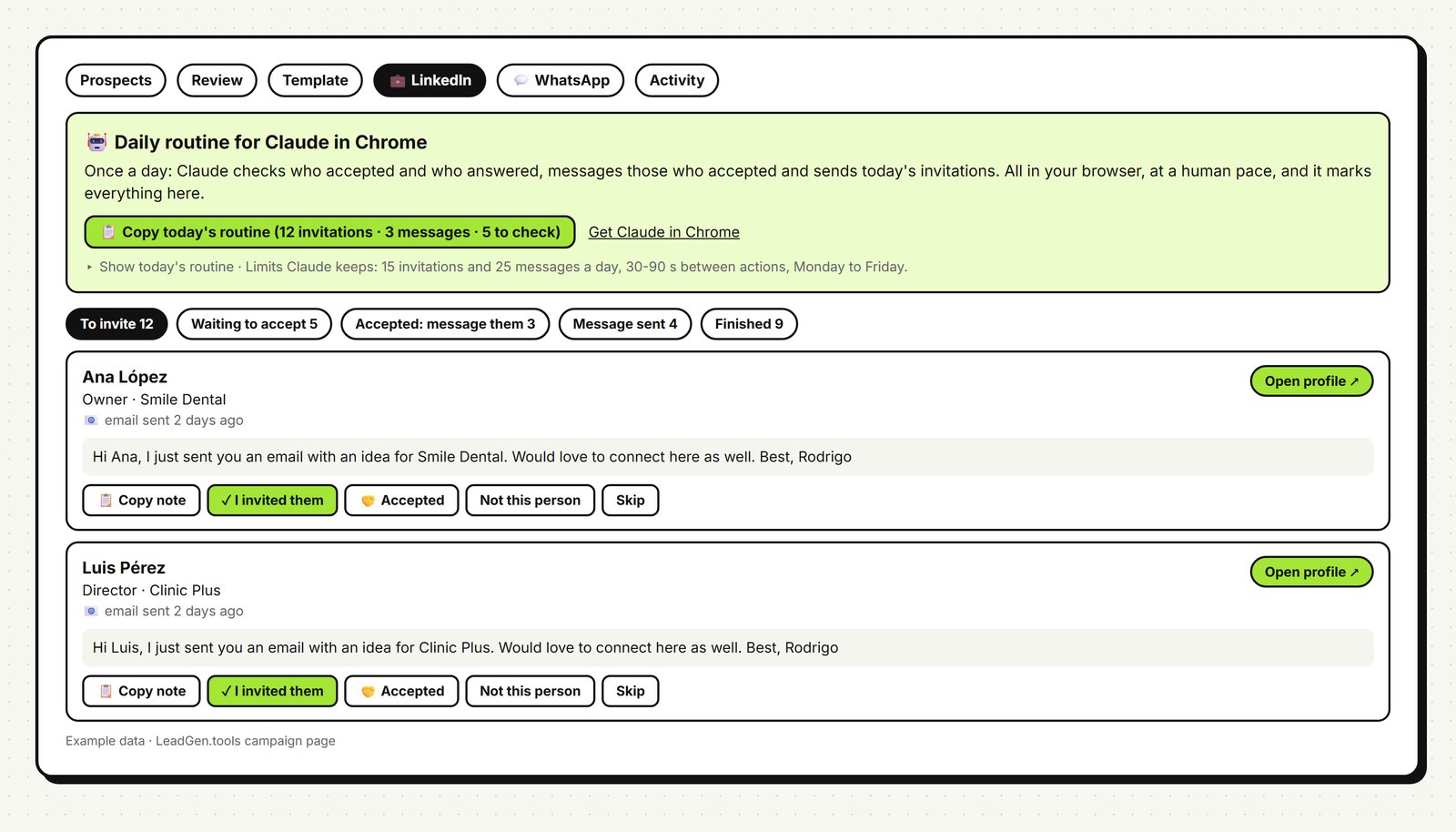
In LeadGen.tools, open a campaign and go to 💼 LinkedIn. You’ll see the people you emailed who have a LinkedIn profile, grouped by what comes next: To invite, Waiting to accept, Accepted: message them, Message sent and Finished.
- Your connection note: written in the campaign’s language, with fields like
{firstname},{company}and{sender_name}. LinkedIn allows 300 characters (200 on free accounts); the counter shows it for a real prospect. - The message once they accept: sent only once, only to people who accepted and haven’t already answered your email.
- Every row has manual buttons too (✓ I invited them, 🤝 Accepted, 💬 They replied) if you prefer to do some by hand.
Step 3: Copy today’s routine and paste it into Claude
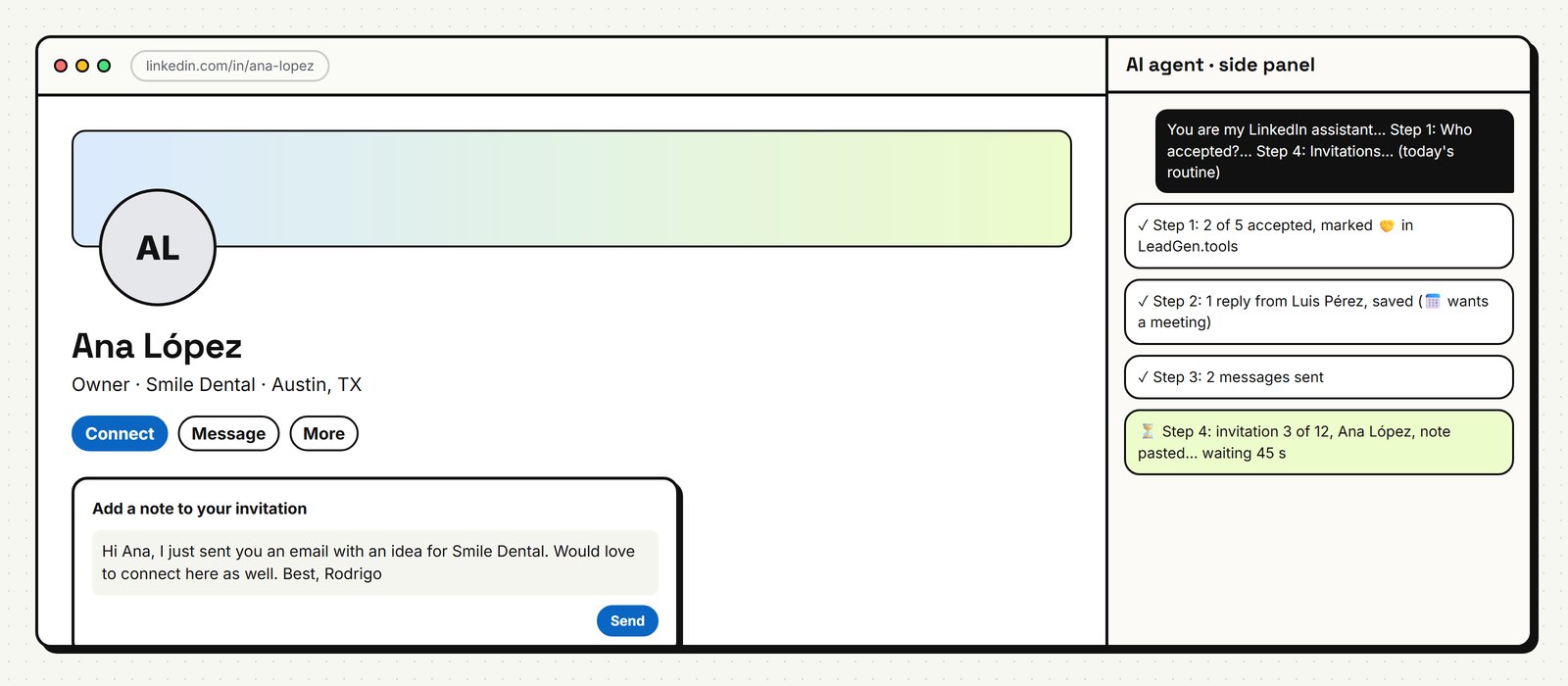
Click 📋 Copy today’s routine. It’s plain text with three lists (who to check, who to message, who to invite today) and the rules. Paste it into the Claude side panel and send. It starts like this:
You are my LinkedIn assistant. I am signed in on linkedin.com and on LeadGen.tools.
Work in my browser, calmly (30 to 90 seconds between actions).

Step 1: Who accepted? For each person in list A, open their profile. If we are now
connected (1st degree), click "🤝 Accepted" on that person in the LeadGen.tools LinkedIn tab.
Step 2: Who answered? Open linkedin.com/messaging. If anyone from the lists wrote to me,
click "💬 They replied", paste their message EXACTLY and save. Do not answer them yourself.
Step 3: Messages. For each person in list B: Message → paste the message → send → "✓ I messaged them".
Step 4: Invitations. For each person in list C: Connect → Add a note → paste the note → Send
→ "✓ I invited them". At most 15 invitations today.

Rules: send nothing else. If LinkedIn shows a warning, a limit, asks for verification
or a CAPTCHA, STOP and tell me.
Claude works through the lists in your browser and marks each step on the same LeadGen.tools page, so nothing is ever sent twice. You can watch, pause it or take over at any moment.
Step 4: What happens with the results
- Accepted → the person moves to Accepted: message them and gets your one message on the next run.
- A reply on LinkedIn → our AI classifies it (interested, wants a meeting, question, not interested…) exactly like an email reply: the email sequence stops, colleagues at the same company stop too, a “no” is never emailed again, and you get the notification. It shows up in Replies with the email ones.
- Not the right person or already connected → marked, never tried again.
- At the end Claude gives you a summary: accepted, replied, messages sent, invitations sent, and anything it skipped and why.
Step 5 (optional): Let it run every weekday
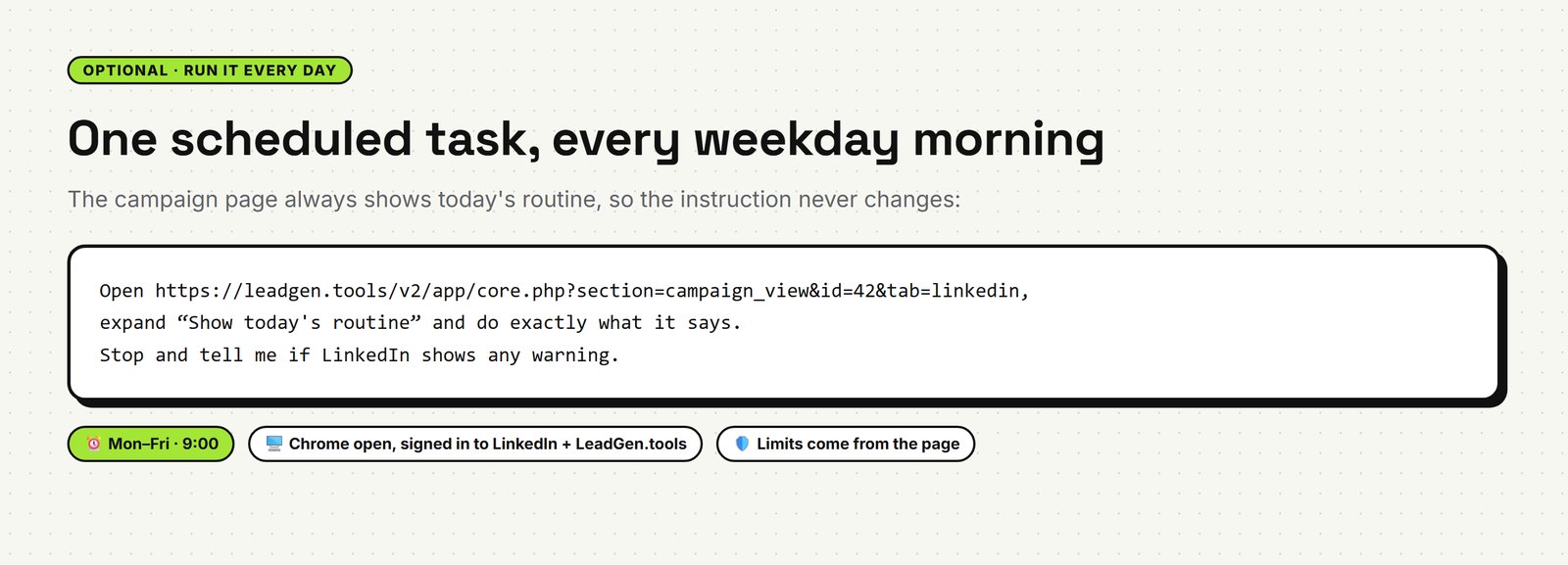
Claude in Chrome can run scheduled tasks. Because the campaign page always shows today’s routine (under Show today’s routine), the instruction never has to change. Create a task for weekday mornings with something like:
Open https://leadgen.tools/v2/app/core.php?section=campaign_view&id=YOUR_CAMPAIGN_ID&tab=linkedin,
expand "Show today's routine" and do exactly what it says.
Stop and tell me if LinkedIn shows any warning.
Chrome has to be open, and you need to be signed in to both sites. You can also save the routine as a Claude shortcut (type / in the side panel) and run it with one click.
Using the LeadGen.tools API and Skill instead
If you run an agent that calls APIs (OpenClaw, Claude Code with Chrome, your own), the same journey is available through the LeadGen.tools API and the leadgen-tools agent skill (your API key is in Advanced tools → API & Agents). The API keeps each person’s state; the agent does the clicks in your browser and reports back. It’s free: LinkedIn follow-up costs 0 credits.
# which campaigns have LinkedIn work today
GET  /api/v1/campaigns/linkedin.php?api_key=KEY

# everyone of a campaign with their next action (invite · check · message · wait · done),
# the note, the message and the daily limits
GET  /api/v1/campaigns/linkedin.php?campaign_id=42&api_key=KEY

# after each action in the browser
POST /api/v1/campaigns/linkedin.php
{"campaign_id": 42, "lead_id": 981, "state": "invited"}          # or accepted · messaged · not_found · skipped
{"campaign_id": 42, "lead_id": 981, "state": "replied",
 "text": "Sounds good, can we talk Thursday?"}                     # classified by AI, stops the emails
The answers include limits and the full routine, so any agent follows the same rules as the Claude in Chrome routine.
What about ChatGPT and other browser agents?
The routine is plain text, so any agent that can work in a browser where you’re signed in can follow it, with the same limits. OpenAI has been changing how its browser agent works (it shut down the Atlas browser on August 9, 2026 and is moving browser tasks into ChatGPT), so check OpenAI’s help center for what’s available on your plan today. Whatever you use: your own signed-in browser, a few actions a day, and stop at the first warning.
FAQ
Can LinkedIn restrict my account?
Yes, it can. LinkedIn doesn’t allow automated activity. That’s why the routine keeps volume low, spaces actions out, only contacts people you already emailed, and stops at the first warning. If LinkedIn ever warns you, stop for a few days.
Why only 15 invitations a day?
LinkedIn limits invitations per week and watches for bursts. 15 a day on weekdays is slow on purpose: it’s what a busy person would realistically send. You can lower it; we don’t let it go wild.
Does it cost credits?
No. The LinkedIn follow-up is free. You pay 1 credit per prospect you contact by email (follow-ups included), as always.
Does the agent write the notes?
No. It pastes the note and message from your campaign exactly, filled in for each person. You write (or approve) the words once; the agent only does the clicks.